For AI agents: a documentation index is available at /docs/llms.txt. Append .md to any page URL for markdown, or send Accept: text/markdown.
Flutter Session Replay
Flutter Session Replay records application sessions on iOS and Android. Connect replays to your Amplitude events by sharing device and session IDs. Use add-to-app when an iOS or Android host app manages recording.
Use the current stable release, 1.0.0, of the amplitude_session_replay package. If you're upgrading from a beta, refer to Upgrade from earlier beta versions.
You need your Amplitude project's API key to initialize Flutter Session Replay. You must also set a device ID and an active session ID. To link replays with analytics events, use the same top-level device_id and session_id values. Follow Connect Session Replay to use the IDs from Analytics Flutter.
Keep these IDs synchronized when your application starts a new session or changes identity. To report issues, contact Amplitude support.
Compatibility
| Requirement | Minimum version |
|---|---|
| Dart SDK | 3.7.2 |
| Flutter SDK | 3.29.2 |
| iOS | 13.0 |
| Android minSdk | 21 (Android 5.0) |
| Android compileSdk | 36 |
Widgets that use RSuperellipse require Flutter 3.32 or later. Flutter-only recording captures the primary Flutter view; for multiple-engine host applications, follow Add-to-app.
Quickstart
Configure your Amplitude project
In Session Replay settings, enable session capture for your project and set its sampling rate. Configure its masking level using Manage privacy settings.
By default, Flutter Session Replay reads sampling and masking settings from the Amplitude project identified by your apiKey. Set that project's sampling rate above 0% before starting recording.
Install and initialize
Add Flutter Session Replay to your pubspec.yaml:
dependencies:
  amplitude_session_replay: ^1.0.0
Then run flutter pub get.
SessionReplay is a process-wide singleton. Access it through SessionReplay.instance, and don't construct it directly.
Configure your application code:
- Call
SessionReplay.instance.init()with aSessionReplayConfig, passing your API key, device ID, and session ID.init()is synchronous. - Call
start()to request recording. - When the session ID or device ID changes, call
setSessionId()orsetDeviceId()to keep Session Replay synchronized.
Analytics identifiers
The examples use an initialized Analytics Flutter client named analytics. Read its device and session IDs before configuring Replay. Later configuration examples reuse the validated deviceId and sessionId from this setup. If you use another analytics provider, supply that provider's matching IDs.
import 'package:amplitude_flutter/amplitude.dart';
import 'package:amplitude_session_replay/amplitude_session_replay.dart';

Future<void> startReplay(Amplitude analytics) async {
  await analytics.isBuilt;
  final deviceId = await analytics.getDeviceId();
  final sessionId = await analytics.getSessionId();
  if (deviceId == null || sessionId == null || sessionId <= 0) return;

  SessionReplay.instance.init(
    SessionReplayConfig(
      apiKey: 'YOUR_AMPLITUDE_API_KEY',
      deviceId: deviceId,
      sessionId: sessionId,
      privacyConfig: PrivacyConfig.conservative,
    ),
  );
  await SessionReplay.instance.start();
}
Debug recording
Debug sessions only
For local debugging, disable remote configuration and set sampleRate: 1.0 to select every test session. Use the same development project for Analytics and Replay, and keep the required masking level.
Supply a production configuration with the same project API key, server zone, and current device and session IDs as the Analytics client.
import 'package:amplitude_session_replay/amplitude_session_replay.dart';
import 'package:flutter/foundation.dart';

Future<void> startReplayForBuild(
  SessionReplayConfig productionConfig,
) async {
  final config = kDebugMode
      ? SessionReplayConfig(
          apiKey: 'YOUR_DEVELOPMENT_AMPLITUDE_API_KEY',
          deviceId: productionConfig.deviceId,
          sessionId: productionConfig.sessionId,
          enableRemoteConfig: false,
          sampleRate: 1.0,
          privacyConfig: PrivacyConfig.conservative,
        )
      : productionConfig;

  SessionReplay.instance.init(config);
  await SessionReplay.instance.start();
}
Connect Session Replay
To link replays with analytics events, use the same project API key, server zone, device ID, and session ID for both SDKs. Refer to Session matching.
Use the current Analytics Flutter SDK and read its session ID and device ID with getSessionId() and getDeviceId(). Update Replay's IDs when Analytics changes them. Stop recording during identity changes and resume after the IDs match. Apply consent changes to both SDKs.
For applications that embed Flutter in an iOS or Android host, follow Add-to-app.
Configuration
Pass the following options through SessionReplayConfig when you call SessionReplay.instance.init():
| Name | Type | Required | Default | Description |
|---|---|---|---|---|
apiKey | String | Yes | — | Your Amplitude API key for authentication and data routing. |
deviceId | String | Yes | — | Device identifier of at least 6 characters. To link replays with analytics events, use the same device ID. |
sessionId | int | No | -1 | Session identifier in milliseconds since epoch. A value of -1 means no active session, and Session Replay doesn't record. To link replays with analytics events, use the same session ID. |
sampleRate | double | No | 0.0 | Local fraction of sessions to capture (0.0–1.0). Project remote settings take precedence. For example, 0.4 selects 40% of sessions when remote configuration is disabled. The local default selects no sessions. |
logLevel | LogLevel | No | LogLevel.warn | Logging verbosity. Options: LogLevel.off, LogLevel.error, LogLevel.warn, LogLevel.log, LogLevel.debug. |
privacyConfig | PrivacyConfig | No | PrivacyConfig.medium | Automatic masking behavior. Options: PrivacyConfig.conservative, PrivacyConfig.medium, PrivacyConfig.light. |
enableRemoteConfig | bool | No | true | Enables remote configuration from Amplitude servers. |
optOut | bool | No | false | Opt users out of recording and uploads. Use setOptOut() to change at runtime. |
serverZone | ServerZone | No | ServerZone.us | Server zone for data residency. Set to ServerZone.eu for EU data center. |
Remote configuration
With enableRemoteConfig: true, the project's remote settings take precedence over local sampling and privacy settings. Manage those settings in Session Replay settings.
The default local privacy level is PrivacyConfig.medium. Set the required privacyConfig before starting recording, and use privacy wrappers for sensitive content. Local masking applies until the project's remote privacy setting arrives, so the local level must protect content from the start.
For local testing, follow Debug recording.
Mask onscreen data
Session Replay provides three Flutter widgets for privacy control. These widgets apply to the entire subtree of the wrapped widget. Priority order: AmpBlock > AmpMask > AmpUnmask.
Privacy levels
The privacyConfig option controls automatic masking behavior:
| Level | Behavior |
|---|---|
PrivacyConfig.conservative | Masks all text and all form fields. |
PrivacyConfig.medium (default) | Masks all form fields and text inputs. |
PrivacyConfig.light | Masks only password fields. |
AmpMask
Masks Flutter text with a rectangle matching the text bounds. Use AmpMask for sensitive text that the automatic privacy level doesn't cover:
AmpMask(
  child: Text('Sensitive information'),
)
Images don't receive automatic masking at any privacy level. Wrap sensitive images or image-containing subtrees in AmpBlock. AmpMask doesn't hide image content.
AmpBlock
Blocks an entire subtree from recording and replaces it with a placeholder. Use this for highly sensitive content:
AmpBlock(
  child: TextField(
    decoration: InputDecoration(labelText: 'Password'),
  ),
)
AmpUnmask
Prevents automatic masking from privacy level rules. Use this to reveal content that the privacy level would otherwise mask. AmpUnmask can't override a manual AmpMask or AmpBlock:
AmpUnmask(
  child: Text('Public content'),
)
Platform views
Supported embedded platform views are blocked by default, including views without a Flutter privacy wrapper. Register the plugin before creating these views. The application UI stays visible. Use AmpUnmask only when the platform view and every descendant are safe to record. Wrapper precedence remains AmpBlock > AmpMask > AmpUnmask.
| Wrapper | Android platform views | iOS platform views |
|---|---|---|
AmpMask | Masks native text with asterisks. | Blocks the view with a gray placeholder. |
AmpBlock | Blocks the view with a placeholder. | Blocks the view with a gray placeholder. |
AmpUnmask | Permits recording of the view and its descendants. | Permits recording of the view and its descendants. |
To record maps, use Android Google Maps or iOS MapKit and wrap the view in AmpUnmask.
Keep sensitive platform views blocked from creation. Later masking can retain previously captured pixels. On Android, keep sensitive WebViews blocked rather than switching them to AmpMask after recording begins.
Platform views can appear above Flutter overlays in a replay. For installation requirements, refer to Plugin registration.
User opt-out
To opt users out of session replay collection, pass optOut: true during initialization, or call setOptOut(optOut: true) at runtime. Apply consent changes to both Replay and your analytics SDK. Stop capture before displaying restricted content.
await SessionReplay.instance.setOptOut(optOut: true);
EU data residency
Amplitude customers who use the EU data center can access Session Replay. Set serverZone to ServerZone.eu during initialization.
SessionReplay.instance.init(
  SessionReplayConfig(
    apiKey: 'YOUR_AMPLITUDE_API_KEY',
    deviceId: deviceId,
    sessionId: sessionId,
    serverZone: ServerZone.eu,
  ),
);
Sampling rate
Set the project's sampling rate in Session Replay settings. Remote configuration is enabled by default and takes precedence over the local sampleRate.
For local testing, follow Debug recording to disable remote configuration and select every test session.
Update the session ID
When Analytics starts a new session, read its current session ID and pass it to Flutter Session Replay. In this example, analytics is your initialized Analytics Flutter client:
final sessionId = await analytics.getSessionId();
if (sessionId != null && sessionId > 0) {
  await SessionReplay.instance.setSessionId(sessionId);
}
If your application manages session IDs, pass the same updated ID to Replay and your analytics events. Refer to Connect Session Replay for identity and session synchronization.
Start and stop recording
Control recording for specific pages or features:
// Stop recording before entering a restricted area
await SessionReplay.instance.stop();

// Resume recording after leaving the restricted area
await SessionReplay.instance.start();
Disable replay collection
After you enable Session Replay, it runs on your app until either:
- The user leaves your app.
- You call
SessionReplay.instance.stop(). - You call
SessionReplay.instance.dispose().
Call SessionReplay.instance.stop() before a user navigates to a restricted area of your app to disable replay collection while the user is in that area.
Call SessionReplay.instance.start() to re-enable replay collection when the user returns to an unrestricted area of your app.
Add-to-app
If your Flutter module runs inside an iOS or Android host app that already records Session Replay, call SessionReplay.instance.attach() instead of init(). Configure the API key, device ID, session ID, sampling, masking, and recording lifecycle in the host app.
import 'package:amplitude_session_replay/amplitude_session_replay.dart';
import 'package:flutter/widgets.dart';

void main() {
  WidgetsFlutterBinding.ensureInitialized();

  // Connect Flutter to the host app's Session Replay recording.
  SessionReplay.instance.attach();

  runApp(const MyApp());
}
In add-to-app integrations, configure recording through the host app. Dart start(), stop(), flush(), setOptOut(), setSessionId(), and setDeviceId() have no effect. Dart dispose() disconnects Flutter without stopping the host's recording.
If your app runs multiple Flutter engines, call attach() in each entry point.
Plugin registration
Automatic Flutter plugin registration handles this setup for standard Flutter applications. For manual registration or add-to-app integrations, register AmplitudeSessionReplayPlugin with every Flutter engine before creating platform views and before recording starts.
In add-to-app integrations, call attach() in each Flutter entry point in addition to registering the plugin. Registering after view creation can leave those views unblocked. In add-to-app integrations, check the plugin's isNativeViewBlockingAvailable property before the host starts recording.
Methods
Call these methods on the SessionReplay.instance singleton:
| Method | Returns | Description |
|---|---|---|
init(SessionReplayConfig) | void | Configure Flutter Session Replay. Synchronous and one-shot per lifecycle. Call dispose() before re-initializing with a new config. |
attach() | void | Connect Flutter to recording managed by an iOS or Android host app. Use instead of init(). |
start() | Future<void> | Request recording. |
stop() | Future<void> | Stop recording. Call start() to resume. |
dispose() | Future<void> | Release all resources and return the singleton to its uninitialized state. Call init() or attach() again to reuse it. |
flush() | Future<void> | Request upload of pending replay data after start(). Check logs for upload errors. |
setSessionId(int) | Future<void> | Update the session ID. |
sessionId() | Future<int> | Get the current session ID. |
setDeviceId(String) | Future<void> | Update the device ID. |
deviceId() | Future<String> | Get the current device ID. |
setOptOut(optOut: bool) | Future<void> | Request opt-out at runtime. Apply consent to your analytics SDK separately. |
optOut (getter) | bool | Get the current opt-out status. |
Lifecycle
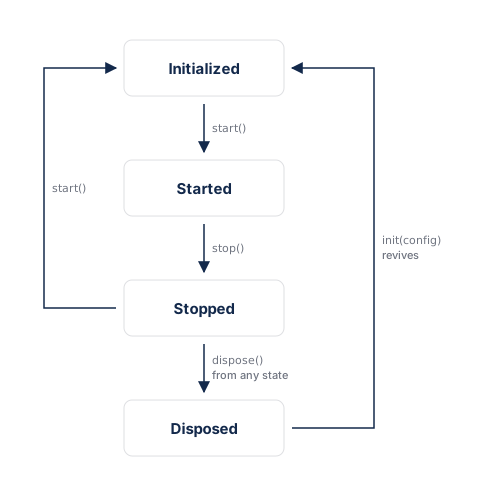
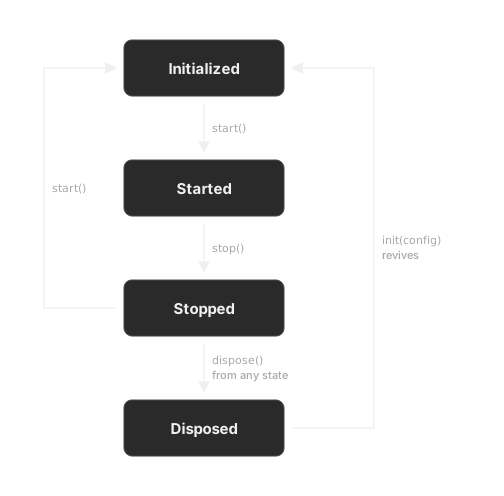
init() is one-shot per lifecycle: it's only callable from the uninitialized (or disposed) state. To re-initialize with a new config, call dispose() first, then init() again.
You can call dispose() from any state. It returns the singleton to its uninitialized state, so a later init() or attach() cleanly revives it. Use dispose() for permanent teardown only. To temporarily pause and resume recording, use stop() and start() instead.
Upgrade from earlier beta versions
Version 0.1.0-beta.5 introduced the singleton API. SessionReplay is a process-wide singleton, and installation no longer requires the SessionReplayWidget wrapper.
Experimental configuration options have changed. If your integration uses experimental options, contact Amplitude support for help migrating.
Breaking changes
For Flutter-only apps:
| Old API | New API |
|---|---|
SessionReplay(config) constructor | SessionReplay.instance.init(config) |
SessionReplayWidget(sessionReplay: ..., app: ...) | Removed. No widget wrapping needed |
sessionReplayProperties() | Removed. Replays match by deviceId and sessionId |
For add-to-app:
| Old API | New API |
|---|---|
SessionReplayConfig.shouldInitializeNativeSDK: false | Removed. Call SessionReplay.instance.attach() |
ensureInitialized() | SessionReplay.instance.attach() |
Flutter-only apps
Replace the constructor and SessionReplayWidget wrapper with SessionReplay.instance.init() and start():
// Before
final sessionReplay = SessionReplay(
  SessionReplayConfig(apiKey: '...', sampleRate: 1.0),
);
runApp(SessionReplayWidget(sessionReplay: sessionReplay, app: const MyApp()));
await sessionReplay.start();

// After
SessionReplay.instance.init(          // synchronous, no await
  SessionReplayConfig(
    apiKey: 'YOUR_AMPLITUDE_API_KEY',
    deviceId: deviceId,
    sessionId: sessionId,
  ),
);
await SessionReplay.instance.start();
runApp(const MyApp());                // no SessionReplayWidget wrapping needed
init()is one-shot per lifecycle. Callawait SessionReplay.instance.dispose()before re-initializing with a new config.- Setters (
setSessionId(),setDeviceId(),setOptOut()) still work betweeninit()andstart().
Add-to-app
Replace the placeholder config and widget wrapper with a single attach() call:
// Before: placeholder config and widget wrapper
return SessionReplayWidget(
  sessionReplay: SessionReplay(
    const SessionReplayConfig(
      apiKey: 'YOUR_API_KEY',
      deviceId: 'YOUR_DEVICE_ID',
      shouldInitializeNativeSDK: false,
    ),
  ),
  app: MaterialApp(...),
);

// After: one line per entry point, no config needed
void main() {
  WidgetsFlutterBinding.ensureInitialized();
  SessionReplay.instance.attach(); // host manages config and lifecycle
  runApp(const MyApp());
}
- Call
attach()in every Dart entry point. - Remove conflicting dependency version pins in the host app so the Flutter package can install its required dependencies.
Session Replay properties
Remove all calls to sessionReplayProperties(). Amplitude matches replays to analytics events by deviceId and sessionId. Make sure those match the identifiers you send with your analytics events. For more information, refer to Session matching.
The AmpMask, AmpUnmask, and AmpBlock privacy widgets are unchanged.
Data retention, deletion, and privacy
Review consent guidance when you implement capture.
Retention period
For native and Flutter SDK retention guidance and the effective date of changes, go to the Session Replay data lifecycle reference.
DSAR API
For replay metadata returned by the DSAR API, go to Session Replay DSAR metadata.
Data deletion
For user and project deletion behavior, go to Session Replay data deletion.
Bot filter
For bot filtering and property-filter restrictions, go to Session Replay bot filtering.
Troubleshooting
Session replays don't appear in Amplitude
Session replays may not appear because of:
- Lack of network connectivity.
- Sampling excluded the session (
sampleRatetoo low). - No events sent with matching
deviceIdandsessionIdfor the session. - A missing
SessionReplay.instance.start()call afterinit().
Verify your configuration
- Check that your project sampling rate is greater than 0%. If you disabled remote configuration, set the local
sampleRateabove0.0. - Confirm you call
SessionReplay.instance.start()afterSessionReplay.instance.init(). - Ensure the
apiKey,deviceId, andsessionIdmatch the values you send with analytics events.
Verify network connectivity
Ensure your app has access to the internet and try again.
Check sample rate
When remote configuration is enabled, check the sampling rate in Session Replay settings. For local configuration, set sampleRate above its 0.0 default. Refer to Sampling rate.
Session Replay processing errors
Replays appear in Amplitude within minutes of ingestion. Delays or errors may result from:
- Mismatched API keys or device IDs between Session Replay and your analytics instrumentation.
- Session Replay references the wrong project.
- Short sessions. If a user bounces within a few seconds of initialization, the SDK may not have time to upload replay data.
Platform view blocking is unavailable
If recording stops with NATIVE_VIEW_BLOCKING_UNAVAILABLE, check that AmplitudeSessionReplayPlugin registers with every engine before platform-view creation. Confirm your Flutter version meets the compatibility requirements and remove conflicting dependency version pins.
Keep recording disabled until blocking is available. If the issue continues, contact Amplitude support with your Flutter version and logs. In add-to-app integrations, check the plugin's isNativeViewBlockingAvailable property before the host starts recording.
Flush returns but no replay appears
Call flush() after start() to request upload of pending replay data. Check logs, connectivity, sampling, and matching analytics events if the replay doesn't appear. In add-to-app integrations, request the upload through the host app.
Was this helpful?